We use our own cookie and analytics tools to understand how people find and use Calorize. If you came from a Google ad, we tell Google when you sign up or buy, to measure that ad. There are no ads inside the app. Your choice is remembered for a year.
Who this is for
- You have an iPhone with Calorize installed from the App Store.
- You have an Apple Watch paired with that iPhone.
- Your watch runs watchOS 10 or newer — Apple Watch Series 6, 7, 8, 9, 10, 11, SE 2nd generation, and Ultra / Ultra 2 / Ultra 3.
Series 4 and 5 are not supported because Apple did not include them in watchOS 10.
Using a Galaxy Watch or another Wear OS watch? See Wear OS — voice food logging.
How to check your watchOS version:
- On the watch: Settings → General → About → Version.
- If it is below 10.0, update the watch through your iPhone first: Watch app → My Watch → General → Software Update.
Installing the app on the watch
If Calorize is installed on your iPhone, the watch app usually installs automatically.
If it does not appear:
- Open the built-in Watch app on your iPhone.
- Scroll down to “Available Apps”.
- Find Calorize → tap Install.
After installation, Calorize appears on the watch Home Screen. Press the digital crown to open the full app grid.
First-time pairing
You only need to do this once. After that, the watch remembers your account.
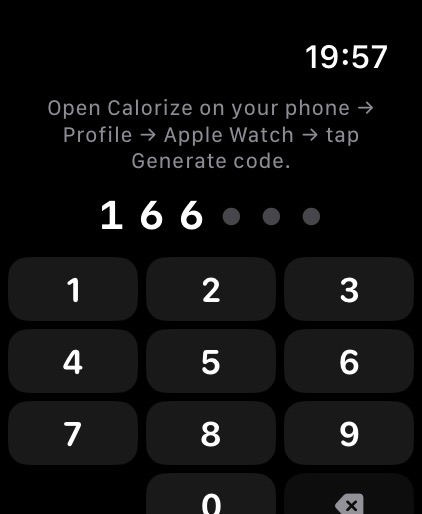
- Open Calorize on the watch — you will see a keypad waiting for a code.
- On your phone, or in a browser on your computer, open Calorize → Profile → find the “Watch” section.
- Tap “Generate code” — a 6-digit code and a timer will appear. The code is valid for 10 minutes.
- Enter those 6 digits on the watch keypad — pairing happens automatically after the last digit.
- If everything is fine, you will see a large orange microphone button. Done ✅
You can pair several watches to one account, for example yours and your partner’s if you share an account.
The list of paired watches is in the same place: Profile → Watch. You can revoke any watch you no longer use.
Logging food from the watch
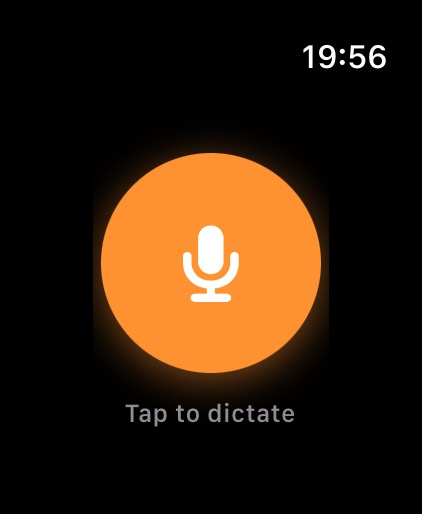
- Open Calorize on the watch: from the Home Screen, from the watch face via a complication, or from Smart Stack — more on that below.
- Tap the large orange microphone button.
- Dictate what you ate, naturally, as if talking to a friend:
- “I had 200 grams of buckwheat and chicken breast for lunch”.
- “Coffee with oat milk, no sugar”.
- “Cheese and tomato sandwich”.
- While you speak, the words appear on the watch screen — you can see straight away what was heard.
- Tap the red Stop button when you are done. Or simply finish with “Mira, that’s all” — the note goes on its own a moment later; tap ✕ in that moment to cancel.
- You will see “Sending…” → “Mira is thinking…”, then Mira's reply.
If the words don't appear (a weak connection, say), the recording is still sent and transcribed on the server — it just takes a little longer.
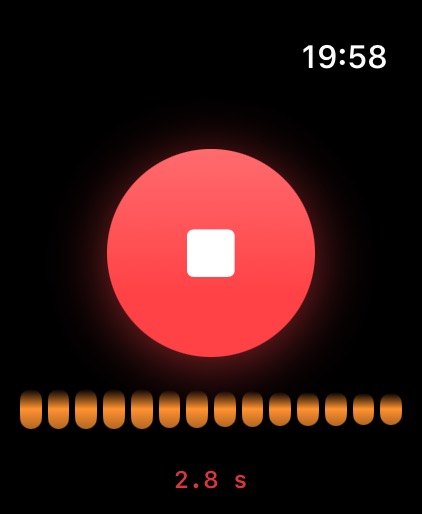
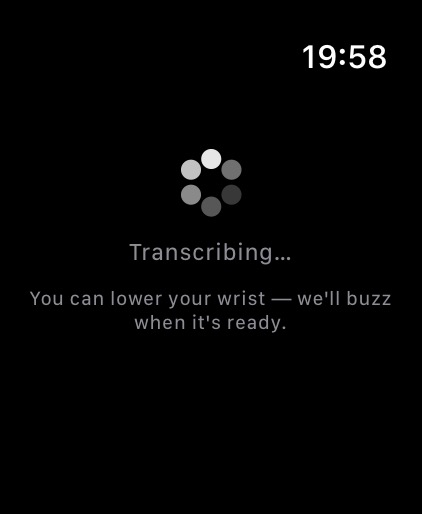
You can lower your wrist right away — processing continues in the background. When Mira logs the food, the watch will tap your wrist with a notification, for example: “✅ Logged buckwheat with chicken to lunch”.
When you raise your wrist again, you will see what you said and Mira’s reply. Tap “New entry” to log something else.
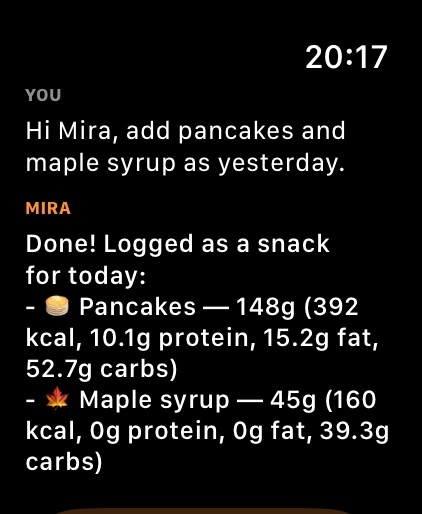
Quick access — 3 ways
So you do not have to search for Calorize every time, here are three options, from the most convenient to the backup method.
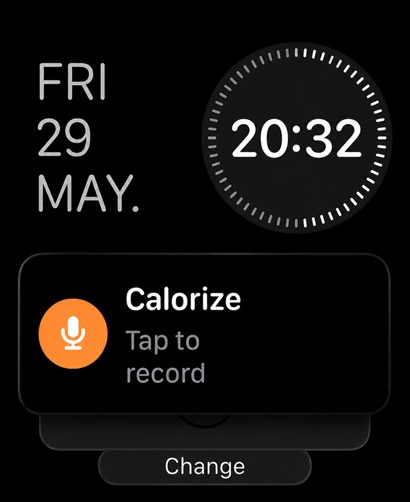
Method 1 — Smart Stack (best for everyone)
Works on any watch, regardless of the watch face.
- On the watch, press the side button — the one below the digital crown.
- Smart Stack opens as a vertical list of widgets.
- Scroll to the bottom → tap “Edit Widgets”.
- Tap + → find the Calorize section → choose “Record to Calorize”.
- Tap Done.
To pin the widget to the top of Smart Stack: long-press it → “Pin”.
How to use it: side button → tap the Calorize widget → recording starts immediately.
Method 2 — complication on the watch face
Works only on watch faces with complication slots, such as Modular, Infograph, Wayfinder, Meridian, and similar. Faces like Activity, Photos, and Solar do not have those slots — use Smart Stack instead (method 1).
- On the watch, long-press the watch face → Edit.
- Swipe left to the “Complications” screen.
- Tap an empty slot or an existing complication you want to replace.
- Scroll the list → find the Calorize section → choose “Record to Calorize”.
- Press the digital crown to exit and save.
Now the watch face shows an orange microphone icon. Tap it, and recording starts instantly.
Method 3 — through the full app grid (backup)
Always works, but it is the slowest option because you need to find the app among the others.
- On the watch, press the digital crown.
- The grid of installed apps opens.
- Find the Calorize icon → tap it.
Use this as a fallback until you set up Smart Stack or a complication.
Dictation tips
- Speak naturally, as if talking to a friend. Not “product: buckwheat, mass: 200 grams”, but “200 grams of buckwheat”.
- Quantity improves accuracy: “two small apples” ≠ “an apple”.
- Mira detects the meal by time of day. You do not need to say “for breakfast / lunch / dinner” if you are eating at a typical time. But you can clarify if you are off your usual schedule: “for yesterday’s lunch”.
- Speak whichever language feels natural — Mira will reply in the same language.
- Several products in one sentence are fine: “Oatmeal with banana, black coffee, and 3 walnuts”.
- Corrections and follow-ups work on the watch too: it is the same conversation as your Mira chat on the phone, for the whole day. “And another coffee” or “no, it was 200 g” is enough — Mira knows what came before.
Notifications
The first time you tap the microphone, the watch asks for notification permission. If you allow it, the watch will tap your wrist when Mira finishes logging.
If you do not allow notifications, everything still works — you will just need to open the app yourself to see the result. You can grant permission later: Settings → Calorize → Notifications.
Limits
Voice requests from the watch and Mira chat on the web share the same daily allowance. Every dictation from the watch reduces what is left for chat on iPhone or web, and vice versa.
One dictation from the watch costs 2 interactions — exactly what a voice message in the app costs: the first goes on turning speech into text, the second on Mira's reply. If speech recognition fails and nothing is logged, only the first is charged.
Details are in AI interaction limits.
Troubleshooting
Calorize does not appear on the watch
- Check that watchOS ≥ 10: Settings → General → About → Version.
- On iPhone in the Watch app: My Watch → scroll down → find Calorize → tap Install.
- Restart the watch: hold the side button → Power Off → turn it back on.
- If the app still does not appear, you may have Apple Watch Series 4 or 5. They do not support watchOS 10, and this is a hardware limitation.
“Code invalid or already used”
- The code is valid for 10 minutes and can be used only once. Generate a new one.
- If you entered the wrong code several times and watchOS shows a blank screen, wait a minute because of the rate limit, then generate a new code.
“Session ended — pair again”
This can happen when the watch asks for a new code even though it was already paired. Possible reasons:
- You manually revoked the watch in Profile → Watch → Revoke.
- You deleted and reinstalled Calorize.
- The server-side session was rebuilt.
Fix: generate a new code and enter it on the watch.
Recording, but nothing happens / “Network error”
- The watch needs internet: through the paired iPhone or through its own Wi-Fi for cellular models.
- Make sure the iPhone is reachable: Bluetooth is on and both devices are on the same Wi-Fi network. When the iPhone is nearby, the watch uses its connection.
- As a last resort, connect Wi-Fi directly on the watch: Settings → Wi-Fi.
“Daily limit reached”
- Voice from the watch + web chat = one shared limit.
- On a paid plan the limit resets at midnight in your own timezone — the one set in your profile, not the server's.
- On the free plan the starter package is one-time: once it is spent there is no daily top-up, and a subscription is needed to continue.
Microphone does not activate
- The first time, the watch asks for permission. If you tapped “Don’t Allow”, enable it later: Settings → Privacy → Microphone → Calorize.
- If it still does not work, restart the watch.
How to revoke a watch
- On the website or iPhone: Profile → Watch → list of watches → “Revoke” next to the one you want.
- After that, the watch immediately loses access. To use it again, you will need to enter a new code.
- This is useful if you are selling or gifting the watch, lost it, or simply do not plan to use it for a while.